What keeps a character consistent
Each generation starts from scratch: nothing links one image to the previous one, except what you attach. Consistency therefore comes from the reference image, attached to every new request, and from a description that does not change. Editing models read the reference and carry the face, hair and outfit into a new scene. In video, the same image serves as the start image, or as a reference cited in the prompt.
10
reference images with Seedream 5 Pro or Kling Image o3, 9 with FLUX.2 Pro
30
reference images for a Seedance 2.5 video, 10 for Kling 4.0
1
start image is enough to animate the character in video
Examples made on Beemm Vision
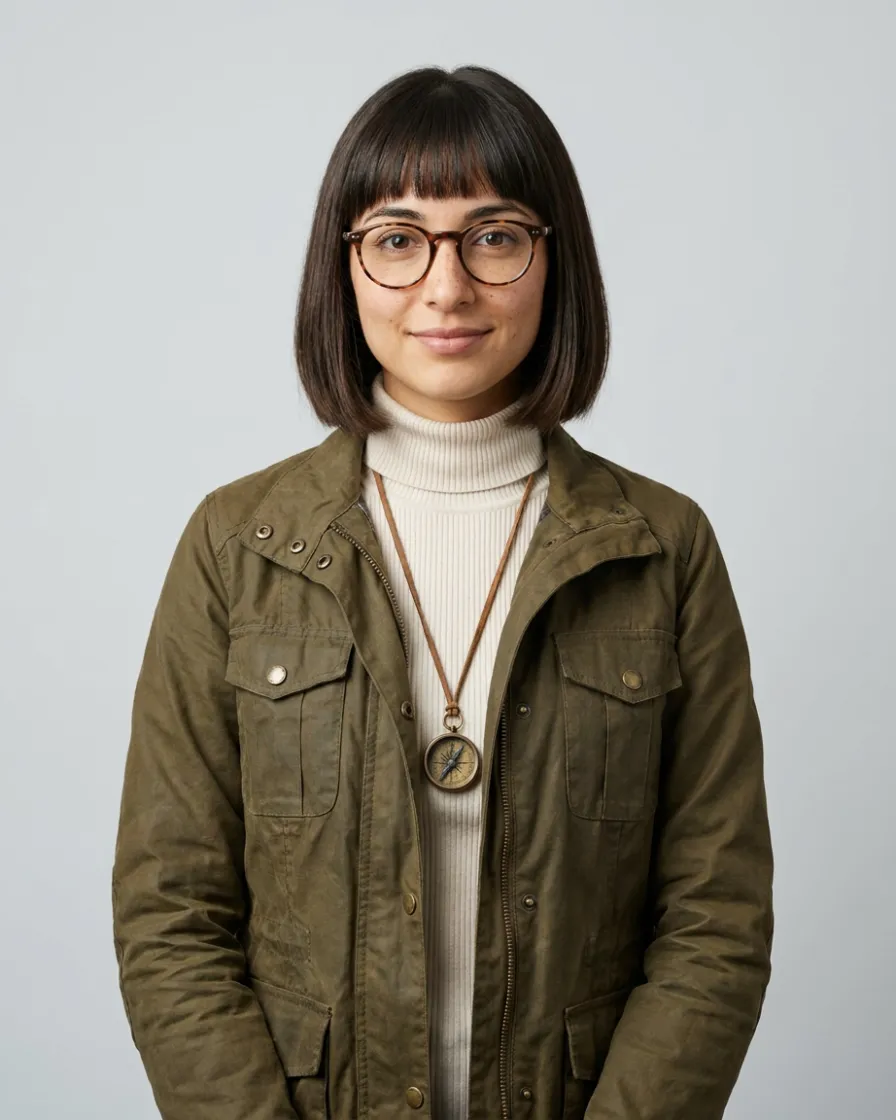
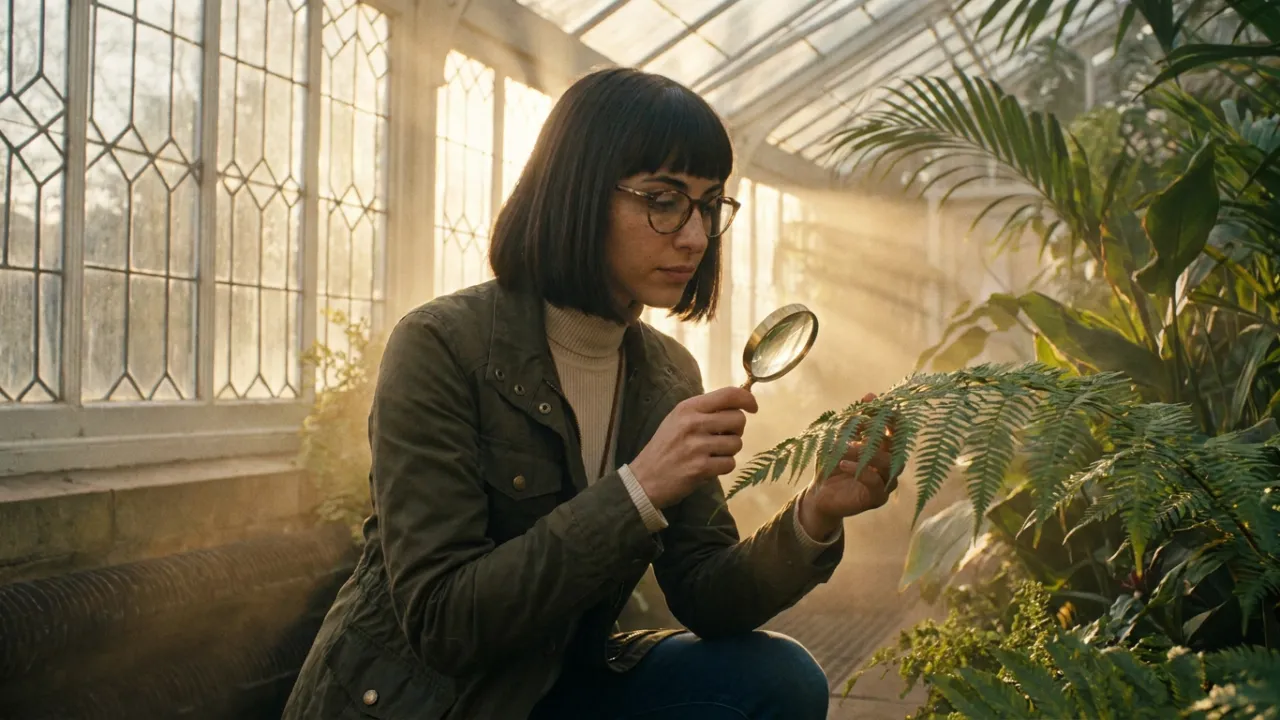
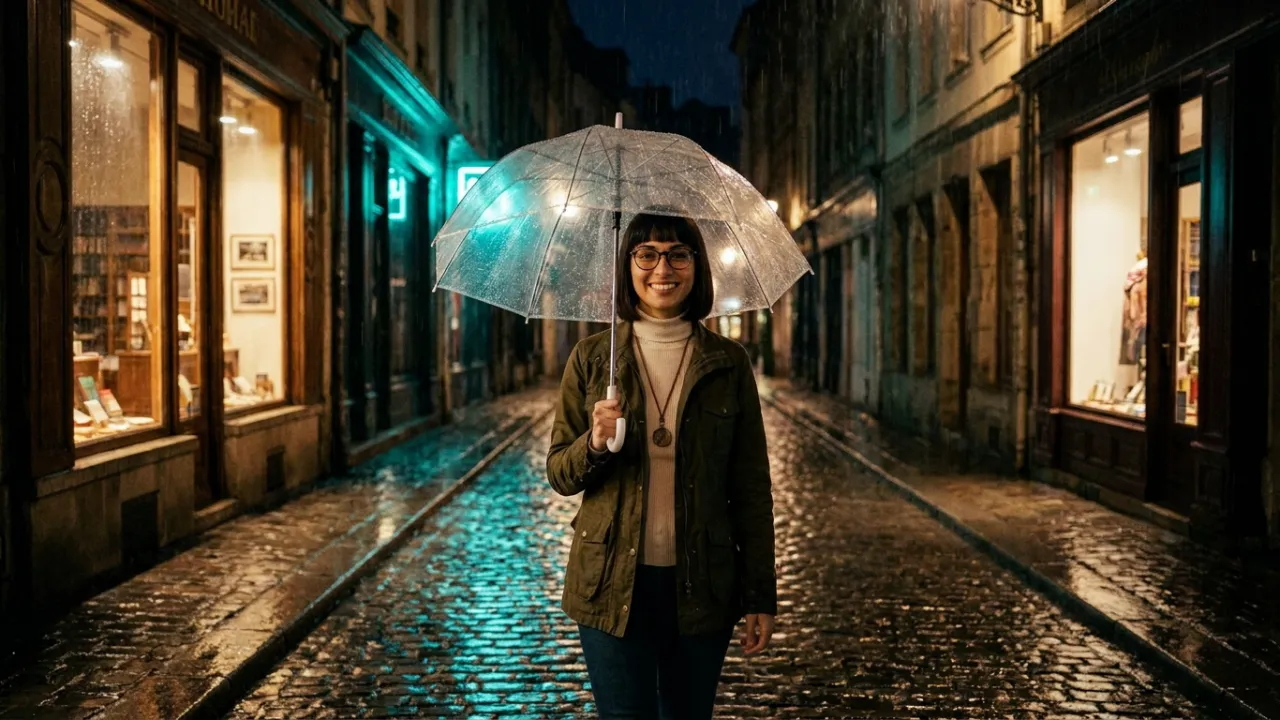
The four steps
Step 1
Create a clean reference image
Generate the character alone, facing the camera, framed from the waist up, on a plain background under soft light. Describe what must stay fixed: age, hair, outfit, accessory. Keep that description, in a Text node on the canvas for instance, to reuse it word for word. You can also start from your own image: import it.
Step 2
Attach it to a model that takes references
In Generate, attach the reference image and describe the new scene; on a generated image, "Use as reference" puts it straight into the bar. Nano Banana Pro, Seedream 5 Pro, Kling Image o3 or FLUX.2 Pro then switch to editing. On the canvas, connect the reference to the node’s image input, and reuse it on as many nodes as you have scenes.
Step 3
Add references for the outfit or the setting
One image per element: the face, the outfit from behind, a prop, the setting. Seedream 5 Pro and Kling Image o3 take up to 10, FLUX.2 Pro up to 9. In Generate, type @ in the prompt to cite a specific reference. And keep the same character description in every prompt.
Step 4
Go from image to video
Give a video model an image of the character as its start image: the Frames type in Generate, the Start Image input on the canvas. The video starts from that image. For a new scene, the Kling 4.0 Reference type takes up to 10 images, cited as @Image1, @Image2… in the prompt, and Seedance 2.5 up to 30. The cost shows before every generation.
The method at a glance
| Step | Where and with what | Tip |
|---|---|---|
| Reference | The character alone, facing the camera, on a plain background | The same image, attached to every new request |
| New scenes | Seedream 5 Pro, Kling Image o3 (10 references), FLUX.2 Pro (9), Nano Banana Pro | The model switches to editing as soon as an image is attached |
| Cite a reference | @ in the Generate prompt | Useful when several images are attached |
| Video from an image | Frames type in Generate, Start Image on the canvas | Kling 4.0, Seedance 2.5, MiniMax H3 Max… |
| Video with references | Kling 4.0: 10 images; Seedance 2.5: 30 | With Kling 4.0, cite @Image1, @Image2… in the prompt |
Use cases
A brand mascot
The same mascot in ten situations: one setting per image, the reference attached every time.
A character sheet
Several views of the character (front, profile, back) generated from the reference, then attached together to the next scenes.
A storyboard
The first panel is the reference for the next ones: that is the method of the AI storyboard guide, on the canvas.
A recurring character
A hero for your posts, generated scene after scene with the same reference and the same description, then animated in short videos.
Frequently asked questions
- How do I keep the same character with AI?
- Attach the same reference image to every generation, with a description that does not change. On Beemm Vision, Seedream 5 Pro, Kling Image o3, FLUX.2 Pro or Nano Banana Pro carry the character into a new scene; a video model then animates it from a start image.
- How many reference images can I attach?
- Up to 10 with Seedream 5 Pro or Kling Image o3, and 9 with FLUX.2 Pro. In video, Kling 4.0 takes 10 with its reference type, and Seedance 2.5 up to 30. Beyond a model’s limit, the extra images are not sent.
- Will the character be identical in every image?
- Not every time: a model can change a detail, a colour or a proportion. A clean, front-facing reference, the same description from one prompt to the next and a few attempts reduce the gaps. In Generate, you can produce up to four images per run and keep the most faithful one.
- How do I take the character from image to video?
- Give a video model an image of the character as its start image: the Frames type in Generate, or the Start Image input of a video node on the canvas. To place it in a new scene, use the references of Kling 4.0 or Seedance 2.5 instead.
- Do I need to train a model on the character?
- Not for this method: it relies on reference images attached to every generation, with no prior training.
- Can I start from my own photo?
- Yes: import it into Generate or onto the canvas, then attach it as a reference. For someone else’s face, get their consent first.
Create your character
Open the studio, generate the reference image, then click "Use as reference" to carry it into the next scene.