What Grok Imagine does
Grok Imagine covers both image and video. For images, three versions: Pro, 2.0 and 1.0, each for creating and for editing from 1 to 3 images. For video, Grok Imagine Video starts from text, a start image or reference images. Its 1.0 version can also extend or edit an existing video.
1 to 15 s
per video clip
1080p
at most, with Video 1.5 and 1.5 Lite
7 images
as references at most, with Video 1.5 and 1.0
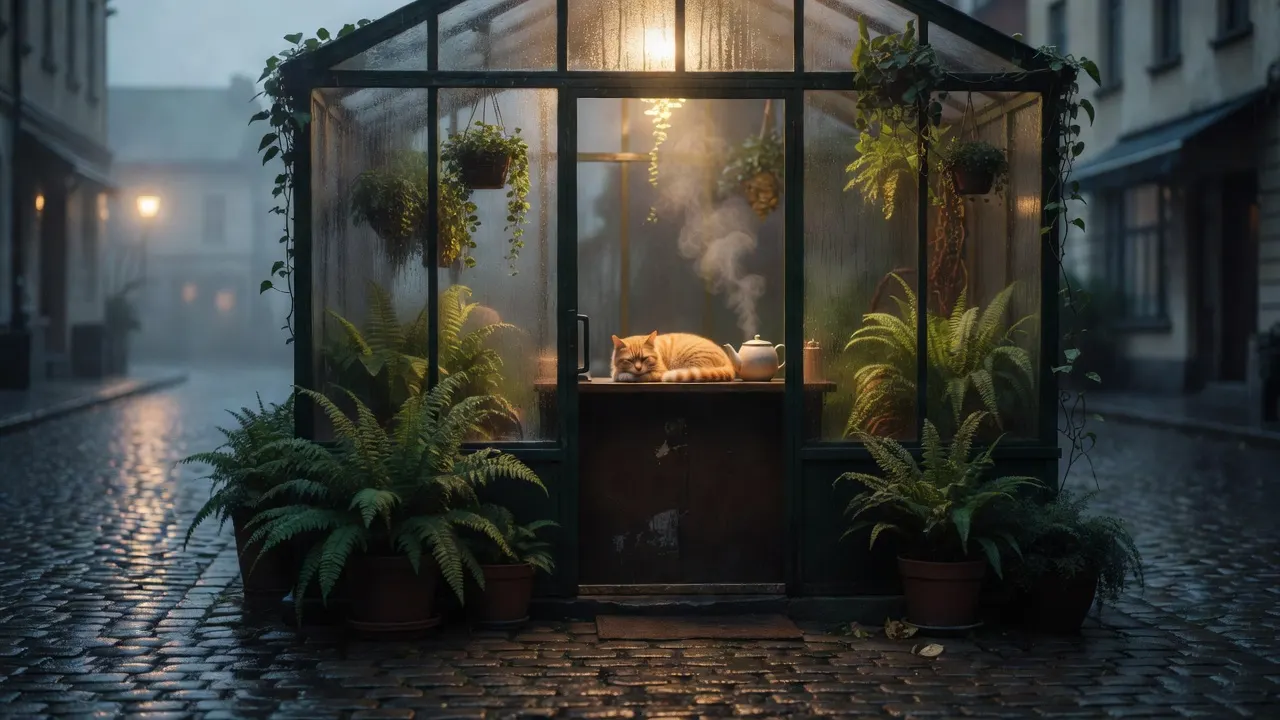
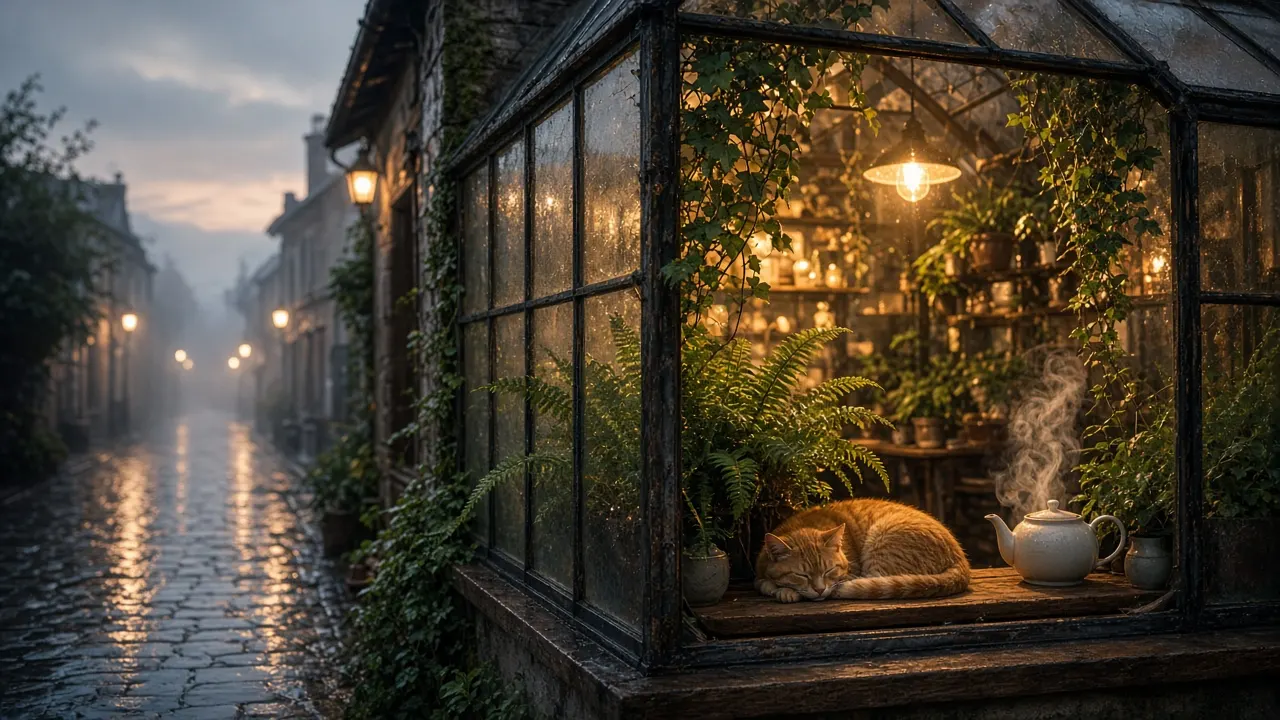
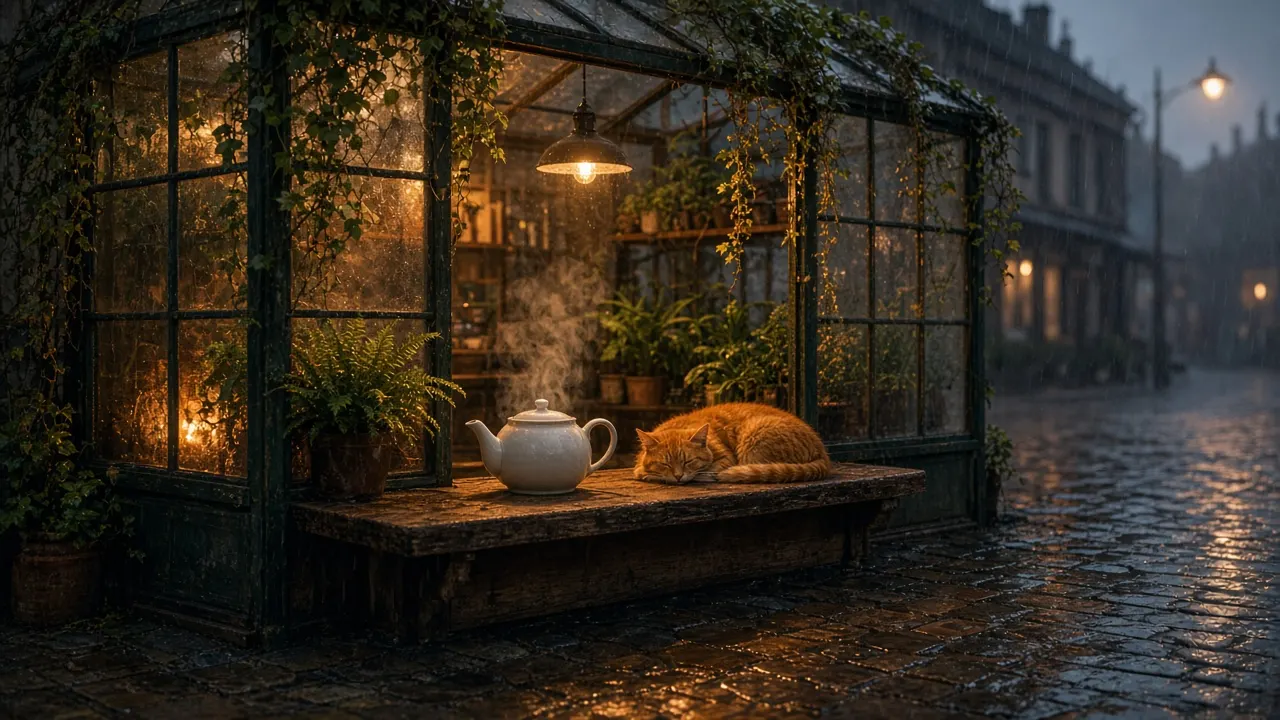
Examples made on Beemm Vision
The four steps
Step 1
Pick image or video, then the version
In Generate, Image tab: "Grok Imagine", version Pro, 2.0 or 1.0. Video tab: "Grok Imagine Video", version 1.5, 1.5 Lite or 1.0, then the Frames, Reference or Text type. Lite has no Reference type; 1.0 adds Extend and Edit.
Step 2
Add your images
For an image, add 1 to 3 images: Generate switches to the editing version on its own, and the prompt describes the change. For a video, Frames starts from a start image. Reference takes up to 7 images, cited in the prompt as <IMAGE_0>, <IMAGE_1>… in 1.5, and as @Image1, @Image2… in 1.0.
Step 3
Write the prompt and set the output
For images, Pro and 2.0 output 1K or 2K; 2.0 also offers Low or Medium quality. For video: 1 to 15 seconds, 480p, 720p or 1080p in 1.5 and Lite, seven formats from 16:9 to 9:16. In Frames, the framing follows the image. Check the duration before you run: Generate can start at 1 second.
Step 4
Run it, then extend or edit
The cost shows before every generation. To lengthen a shot, use Grok Imagine Video 1.0, Extend type: it adds 2 to 10 seconds to a 2- to 15-second video, at 720p at most, and returns the whole video. The Edit type reworks 8 seconds of video at most: in Generate, you pick the part to keep.
The settings at a glance
| Setting | Values | Tip |
|---|---|---|
| Image version | Pro, 2.0, 1.0 | Pro and 2.0: 1K or 2K; 1.0: no resolution setting, jpeg output |
| Quality (image 2.0) | Low, Medium | Medium by default; Low costs less |
| Image editing | 1 to 3 images | Add an image: Generate switches to editing |
| Video version | 1.5, 1.5 Lite, 1.0 | Lite: the cheapest at equal resolution; 1.0: Extend and Edit |
| Duration | 1 to 15 s | 10 s at most with 1.0 in Reference |
| Video resolution | 480p, 720p, 1080p | 720p by default; 1080p in 1.5 and Lite, without references |
| References | Up to 7 images | <IMAGE_0>… in 1.5, @Image1… in 1.0; no Reference in Lite |
Use cases
An image, then its animation
On the canvas, a Grok Imagine 2.0 node connected to Grok Imagine Video 1.5 in Frames: the shot starts from that image and keeps its framing.
A vertical format to iterate
Grok Imagine Video 1.5 Lite in Text, 9:16, a few seconds at 480p: check the motion before moving to 1.5.
A character held across shots
The character, outfit and set as reference images, up to 7, cited as <IMAGE_0>, <IMAGE_1>… in the 1.5 prompt.
Lengthen a good shot
Grok Imagine Video 1.0, Extend type: 2 to 10 more seconds. Make the source at 720p at most: a 1080p video cannot be extended.
Frequently asked questions
- Is Grok Imagine free?
- On Beemm Vision, signing up gives you free credits, once, usable across the whole catalogue, Grok Imagine included. After that, each generation is paid in credits, and the cost shows before every generation. For xAI's own offer in its apps, check with xAI.
- Can Grok Imagine make videos?
- Yes, with Grok Imagine Video: 1 to 15 seconds, from text, a start image or references. 1.5 and its Lite version go up to 1080p; 1.0 stops at 720p but can extend and edit a video.
- Grok Imagine Video 1.5, 1.5 Lite or 1.0: which one?
- 1.5 for the final render and for references, up to 7 images. 1.5 Lite to iterate: the cheapest at equal resolution, with no Reference type. 1.0 to extend or edit an existing video, at 720p at most.
- How do I cite reference images?
- In Grok Imagine Video 1.5, as <IMAGE_0>, <IMAGE_1>… in the prompt; in 1.0, as @Image1, @Image2… Up to 7 images. With references, the video comes out at 480p or 720p.
- How is Grok Imagine billed?
- For images, per image produced, by version and resolution; an edit adds an amount per input image. For video, per second produced, by version and resolution. Extend is billed as a 15-second source, and Edit as at least an 8-second source, even if yours is shorter. The cost shows before every generation.
- Do I need an X or xAI account?
- No. Beemm Vision calls the model through its providers and bills in credits, on one balance shared across the whole catalogue. You have no xAI account or API key to manage.
Try Grok Imagine
Open the studio on Grok Imagine Video 1.5, set 5 seconds at 720p and run a first clip, or switch to the Image tab to start with an image.