What the model does
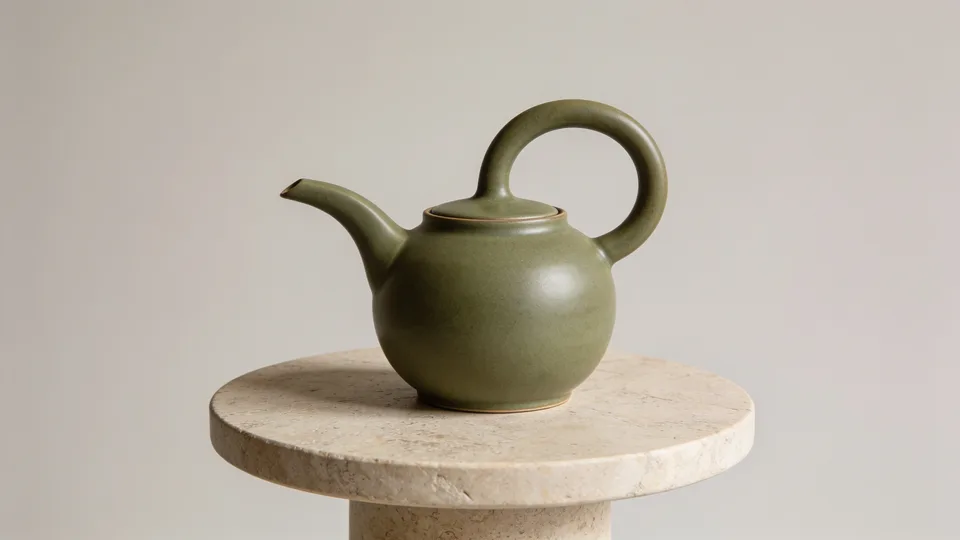
MiniMax H3 Max Multi Angle starts from a single image. The scene stays frozen; only the camera moves, along a path you define: circle the subject, push in, rise above it. That is what sets it apart from H3 Max image-to-video, which animates the scene from a first frame, and a last one if you give it.
1 image
in, with a short prompt
2 to 12
camera positions per clip
5 to 15 s
in 480P, 768P or 1080P
The four steps
Step 1
Wire in the subject image
Add an image node with your photo (up to 10 MB), or generate it with another model in the catalogue. Then add “MiniMax H3 Max — Multi Angle” from the canvas video models and connect the image to it. There is no last frame to provide: the camera path describes the ending. Write a short prompt describing a still scene: the camera does the moving. Leave room around the subject: whatever the camera uncovers as it moves, the model has to invent.
Step 2
Pick a camera path
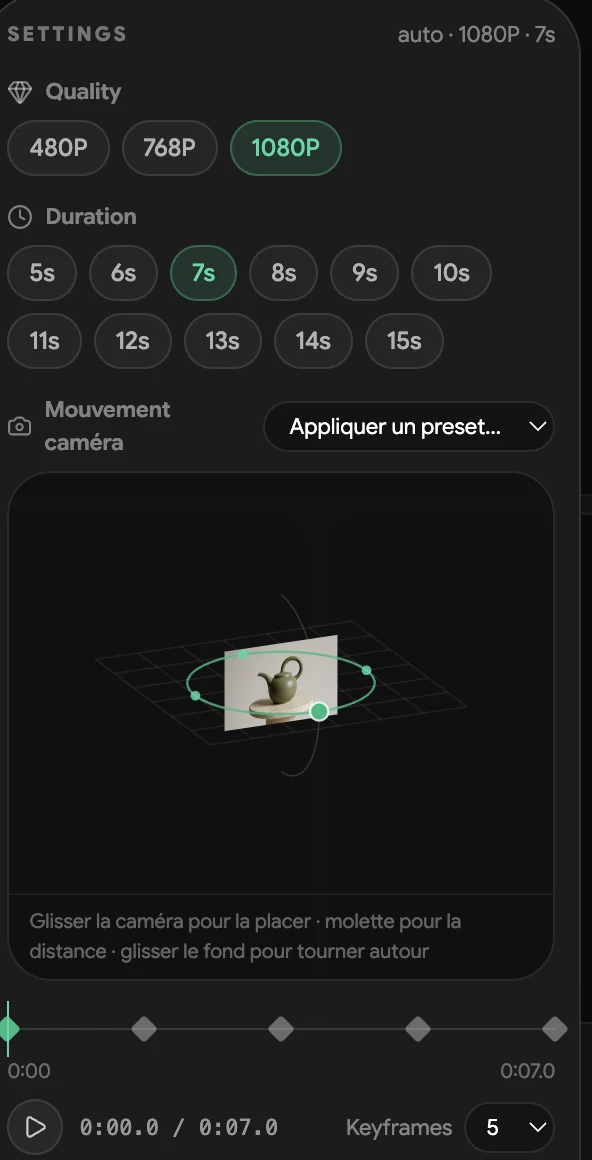
In the node's inspector no move is set at first: pick one of the twelve presets (orbits, dollies, crane, spiral, swing). It applies in five camera positions, which you can then take anywhere from 2 to 12.
Step 3
Adjust the camera positions
Each position says where the camera is at one moment of the clip: its angle around the subject, its height (from −90° to 90°) and its distance. You need two at least, twelve at most. Before the first position the camera already sits there; after the last one it stays.
Step 4
Set duration and resolution, then run
Pick a duration from 5 to 15 seconds and a resolution among 480P, 768P and 1080P. The cost shows before you run: validate the move in 480P, keep 1080P for the final cut. The same controls exist in Generate, without opening the canvas.
The 12 preset camera paths
Top view, drawn from each preset's real positions: the green dot is the subject, the hollow circle where the camera starts, the solid dot where it ends. Height moves (crane, high and low orbits) read here as moving closer to the centre.
- Dolly in
- Dolly out
- Spiral in
- Crane up
- 360° orbit right
- 360° orbit left
- Half orbit right
- Half orbit left
- High orbit right
- Low orbit right
- 360° spiral orbit
- Swing
The settings at a glance
| Setting | Values | Tip |
|---|---|---|
| Input image | One, up to 10 MB | Subject centred, with room around it |
| Camera positions | 2 to 12 | Start from a preset, then adjust |
| Duration | 5 to 15 s | Same path, longer clip: slower move |
| Resolution | 480P, 768P, 1080P | 480P to test, 1080P to deliver |
| Prompt | Required | Short, still scene: the camera does the moving |
Ideas to use it for
Product packshot
One bottle shot, one full orbit: the turnaround for a product page or an ad.
Architecture model
A crane up to reveal a building or a site plan.
Character or figurine
A half orbit to show a generated character from several angles.
Batch series
The same move over a whole catalogue of images, with Scale mode.
Frequently asked questions
- What is MiniMax H3 Multi Angle?
- A variant of MiniMax H3 Max that turns a still image into video by moving only the camera, along 2 to 12 positions you choose.
- How is it different from H3 Max image-to-video?
- H3 Max image-to-video animates the scene from a first frame, and a last one if you give it. Multi Angle keeps the scene frozen and drives the camera.
- What duration and resolution?
- 5 to 15 seconds, in 480P, 768P or 1080P.
- Do I need to write a prompt?
- Yes, a short prompt is required. Describe a still scene: the camera path creates the motion.
- Can I use it without the canvas?
- Yes. The camera path editor is also in Generate, the direct generation page.
Try it with your image
Open the studio, add MiniMax H3 Max — Multi Angle from the video models and connect your image to it.